
Train Your Own Image Model Using Leonardo AI
A Simple Approach To Customize Your AI Images

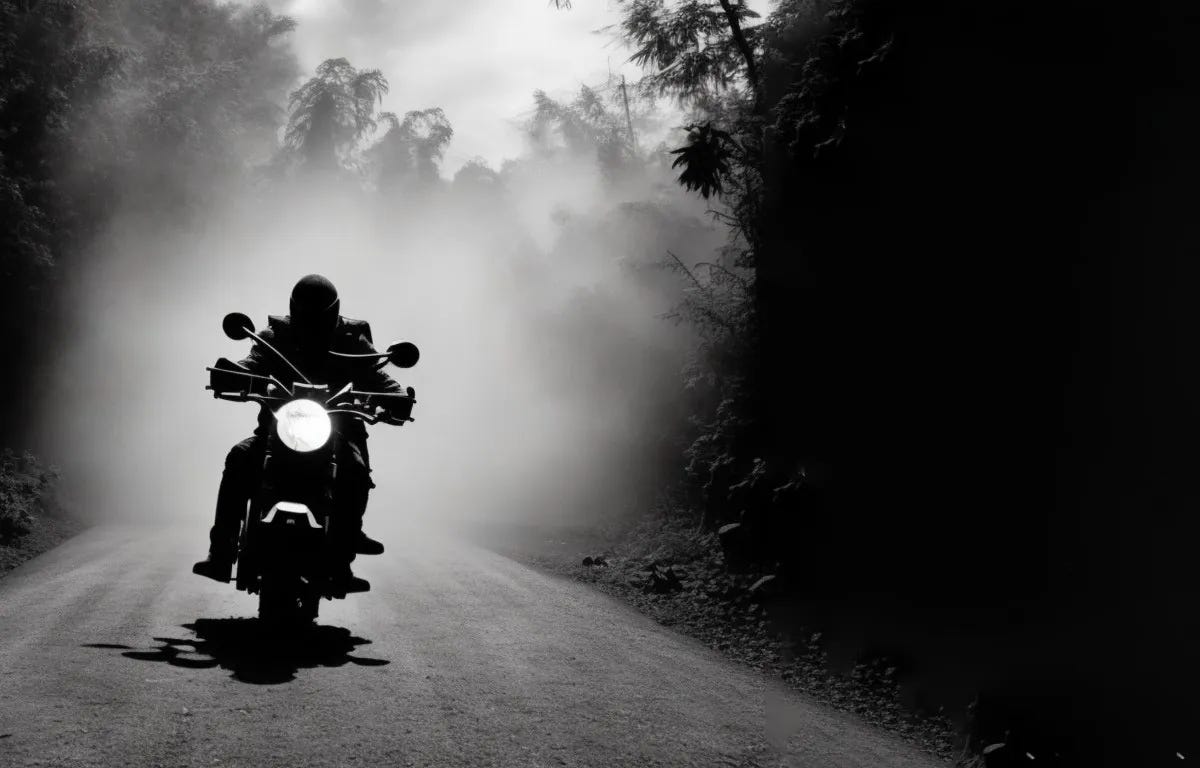
Leonardo AI is a new generative image tool that has been getting a lot of attention lately, often being compared to Midjourney.
While the focus of Leonardo is on producing high-quality game assets and concept art, Leonardo includes some amazing features such as a slick website UI, image editor, and prompt generator.
But the amazing unique feature of Leonardo is in the image modeling.
Unlike other AI image platforms that run on foundational models like Stable Diffusion and DALL-E, Leonardo runs on fine-tuned models.
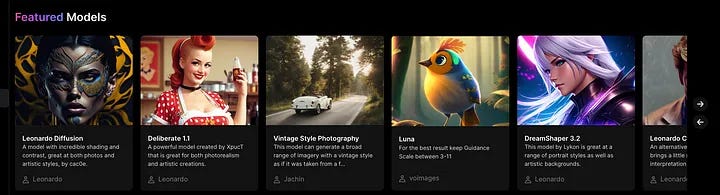
So the first thing you will notice when you login to Leonardo is a selection of featured models. The idea is to select one of the models that are closest to the style of images that you want to generate.
A good way to think about models is like templates.
Select a model and generate AI images with your own prompts.
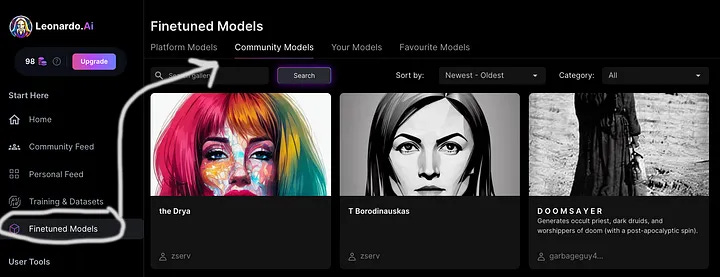
Community Models
While the featured models are considered the platform models in Leonardo, it gets really interesting when you explore the community models.
These are AI models that users have created themselves using Leonardo and shared for anyone to use.
For example, here is a fine-tuned model called ‘Little Heroes.’
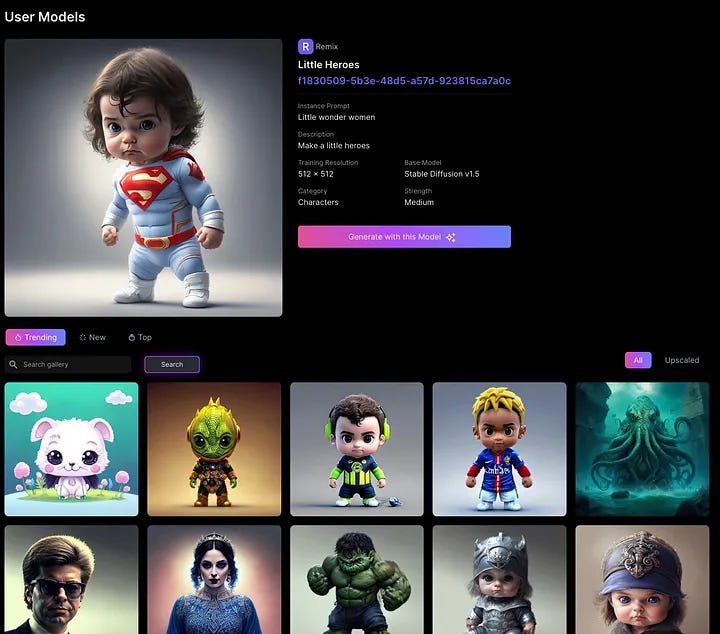
And using this model, here are some images I generated of Will Smith and Harry Potter:
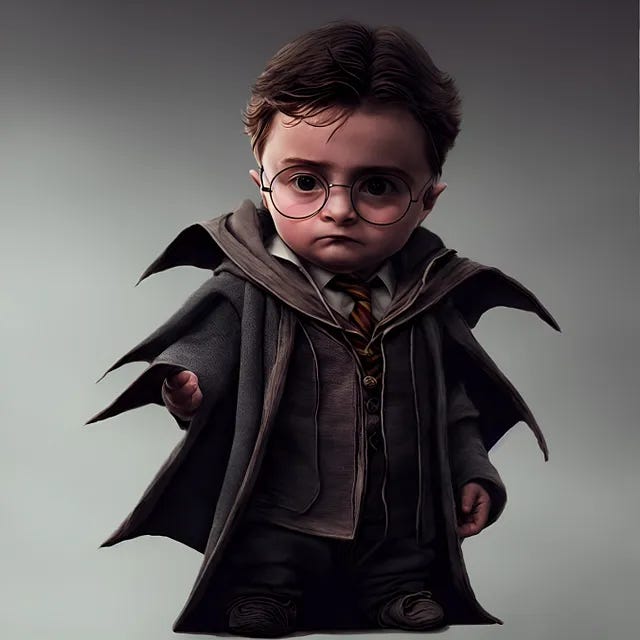
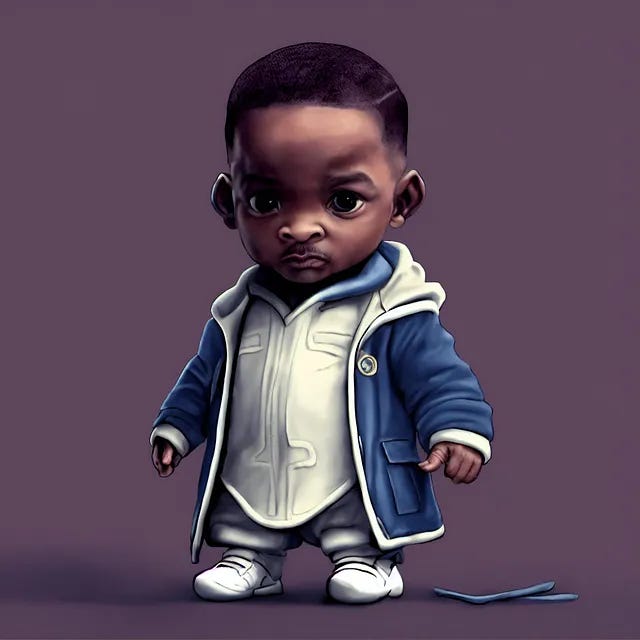
Cool right?
It gets better.
Because you too can easily train your own model.
What are the benefits of having your own fine-tuned model?
You can easily generate images based on a style that you favor.
If you are an artist, you can generate AI images based on your style.
You can share your model for others to use.
How To Train Your Own Fine-Tuned Model
Step 1: Create a Dataset
You start by creating a dataset, that consists of images you can either upload yourself or select from Leonardo’s gallery.
Click on ‘Training & Datasets’ and ‘New Dataset’
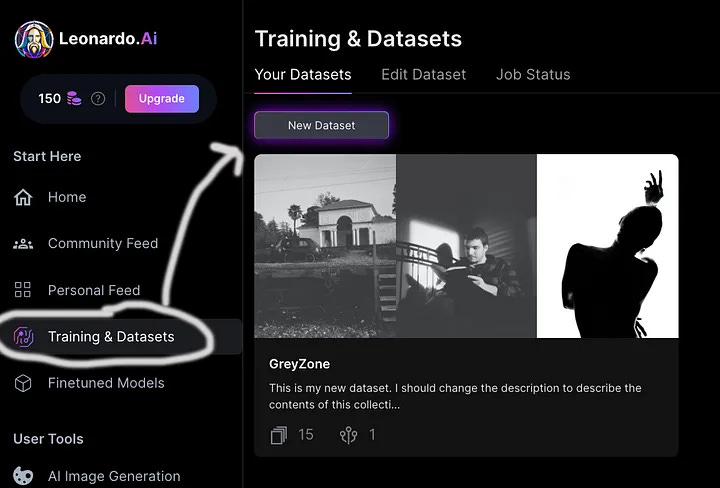
Name your dataset.
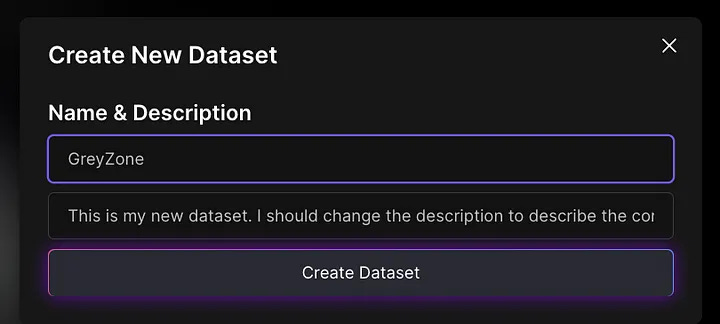
Finally, upload images or search for images via Leonardo’s gallery to include in your dataset.
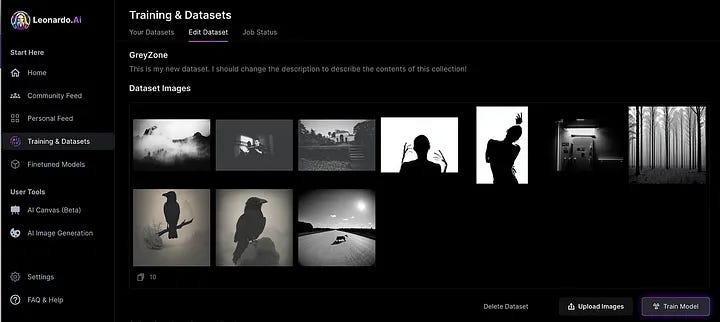
In this example, I named the dataset ‘GreyZone’ which is based on abstract selections of high-contrast and black-and-white imagery.
I uploaded royalty-free images from ‘Unsplash’ and used some gallery-selected images already in Leonardo.
Step 2: Train Your Model
Once you have your dataset completed with the images you want, click on ‘Train Model’ to start the training process.
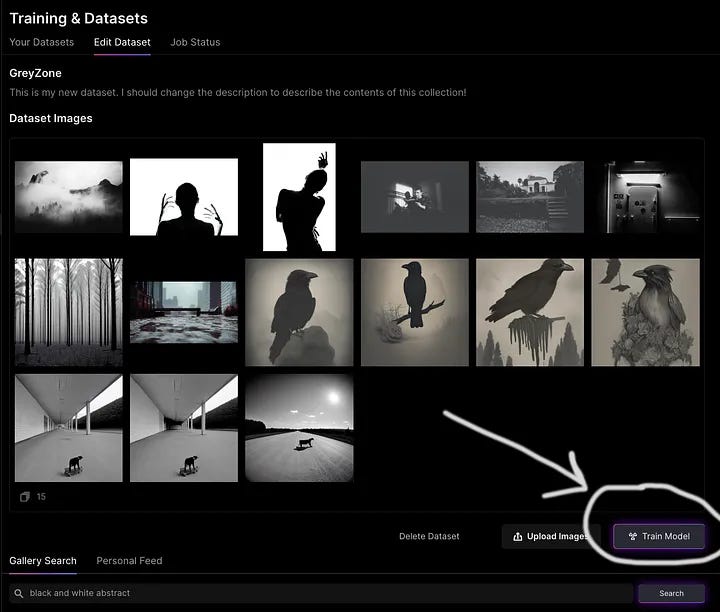
You will need to add metadata information to your model:

To be clear, what is happening here is we are fine-tuning a new model that leverages Stable Diffusion as the base model but is tuned to a dataset of provided images.
So when you generate images from this model, it uses the added images in the dataset as the style and preference and Stable Diffusion as the foundational model of 5 billion image-text pairs (LAION-5B dataset).
Once Leonardo has completed the process of training, the model will be available in the Finetuned Models > Your Models section
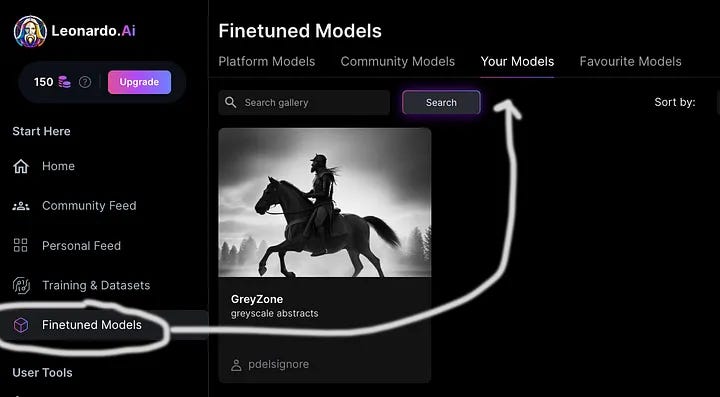
BOOM… You can then click on your model and start generating new images from it.
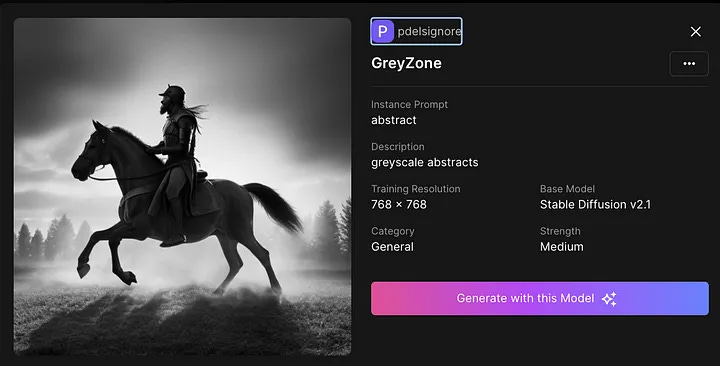
Now when I generate images using this model… you can see that it captures the essence of the trained images…
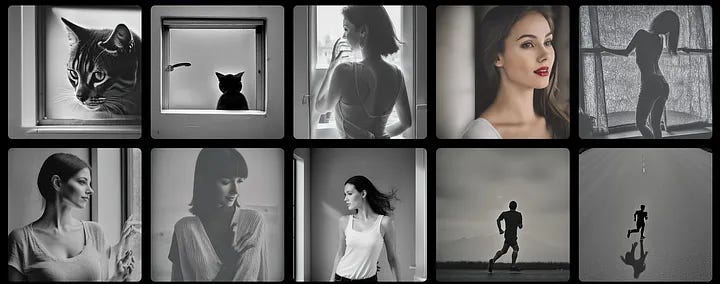
pretty awesome right?
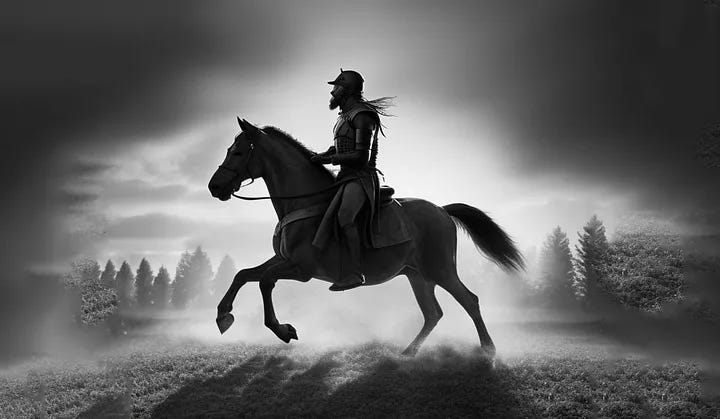
Here is an image I generated with my GreyZone model… using the following prompt — Odin riding a horse, dramatic lighting, dark, realistic, cinematic:
Final Thoughts
We are approaching the age of fine-tuned AI models, where businesses and creatives are interested in customizing their own output.
Leonardo AI makes it super easy to create fine-tuned image models that you can start using today.